
Set Nicasa as Your Default Image Viewer
Follow these simple steps to open your images with Nicasa by default.
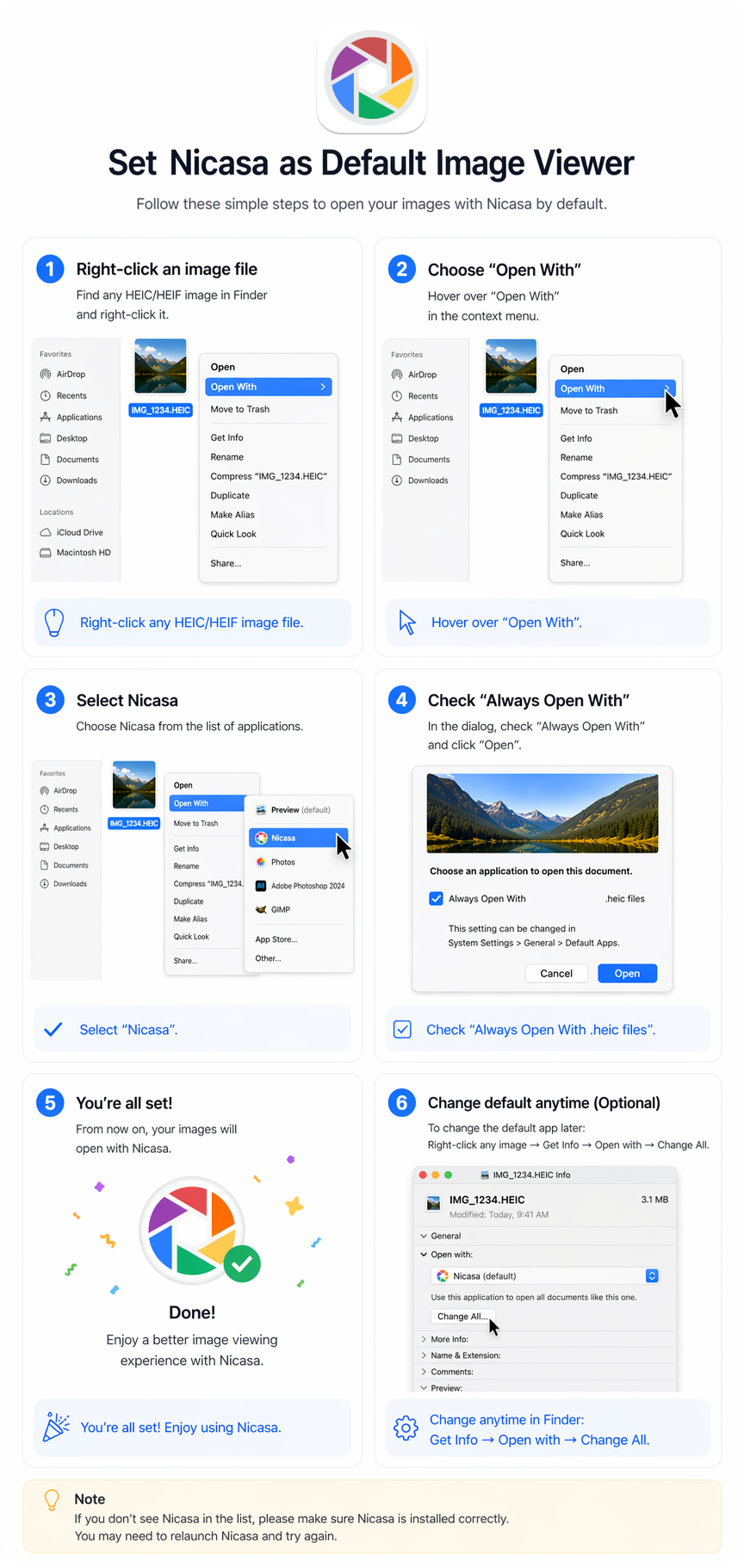
Step 1 — Right-click an image file
Find any HEIC/HEIF image in Finder and right-click it.
Tip: Right-click any HEIC/HEIF image file.
Step 2 — Choose “Open With”
Hover over “Open With” in the context menu.
Tip: Hover over “Open With”.
Step 3 — Select Nicasa
Choose Nicasa from the list of applications.
Tip: Select “Nicasa”.
Step 4 — Check “Always Open With”
In the dialog, check “Always Open With” and click “Open”.
Tip: Check “Always Open With .heic files”.
Step 5 — You’re all set!
From now on, your images will open with Nicasa.
Tip: You’re all set! Enjoy using Nicasa.
Step 6 — Change default anytime (Optional)
To update your default app later:
Right-click any image → Get Info → Open with → Change All
Tip: Change anytime in Finder: Get Info → Open with → Change All
Note If you don’t see Nicasa in the list, please make sure Nicasa is installed correctly. You may need to relaunch Nicasa and try again.